Keel · Guides · Routines & Programs
Edit, pause or delete a routine
How do I stop one for a while?
+ › Manage routines: tap a routine for Edit; swipe its row for Pause (no confirmation) and Delete (keep or erase its history).
AvailabilityFree
+ › Manage routines — the sheet titled Routines (also Tools › Routines & Programs). Tap a routine for its detail; swipe its row from the right for Pause and Delete.
Edit
- Tap the routine, then Edit. The form opens fully as Edit Routine; change what you need and tap Save. Only pending doses that no longer fit the plan are replaced — logged, skipped, snoozed, moved, late and missed doses are never rewritten.
Pause
- Swipe the row › Pause. There is no confirmation; the row gains a Paused eyebrow, and the same swipe offers Resume. While paused, Keel schedules nothing new and removes the routine’s Upcoming and Due rows from Today and the calendar; snoozed, moved, late and missed rows and everything logged stay as they are, and the detail screen has no Log a dose now.
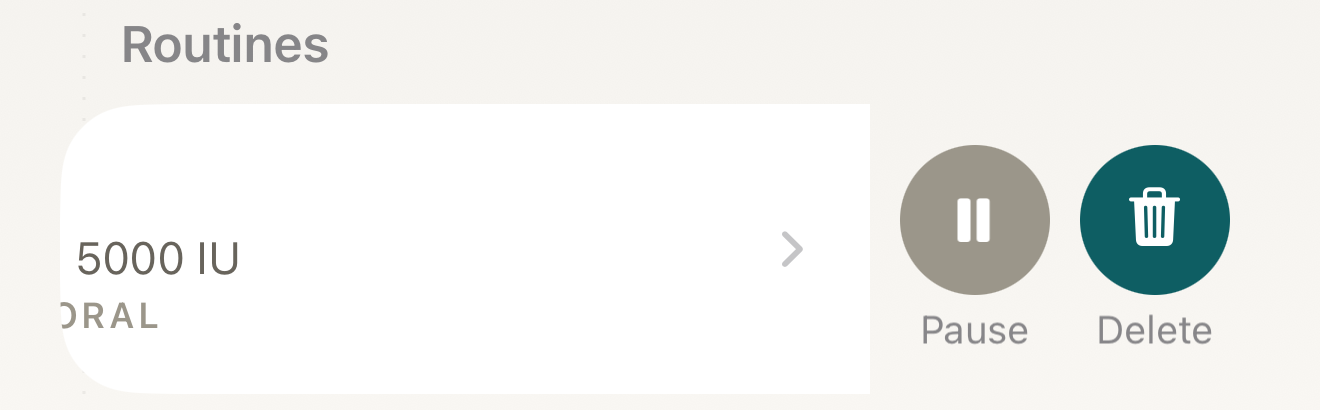
Swipe a routine’s row: Pause stops its doses without asking; Delete asks what to keep. - Pause
- Delete
Where this screen comes from
- File
C2-F1-routine-swipe-actions.png(1320×410);C2-F1-routine-swipe-actions.webpis a lossy encode of it- Derivative SHA-256
919f9e1eed6c51046b93b2d5468a5cf8e9e3dd922de5ba852cd68e8d2c89fe47- Source
C2-F1.pngin packageKeel-WT-7e41269-guide-figures-B2-20260924-111151-1756- Source SHA-256
9856c4a40f08710e496a2def8e99ce2189151b2c07d1c4e877c05aa43494b197- Package seal
f9b0083234734b6b16f58e455596067bde9182e8e0ff62c5e84cdfae8ad22c6f- Captured from
- Keel 1.0.0 (1), implementation
working tree 7e41269 (NOT a candidate; head 7e4126919da3a44a9ad2f2efaf3ad2467c1fbff7, build-input tree c863167fe1474c471d3562fe90f5f107c9598edff3903cdfc58b89bc7ae3032c, build build-20260924-103514-93133) - Operation
- crop x0 y530 w1320 h410 (source pixels, origin top-left)
The numbered markers are drawn by the page, not into the image.

Delete
- Swipe the row › Delete › Delete this routine? offers Delete routine, keep history and Erase history (no Cancel button is drawn — tap outside the dialog to keep everything as it is): "You can remove the routine and schedule while keeping immutable history, or permanently erase every revision of that routine’s history from this account."
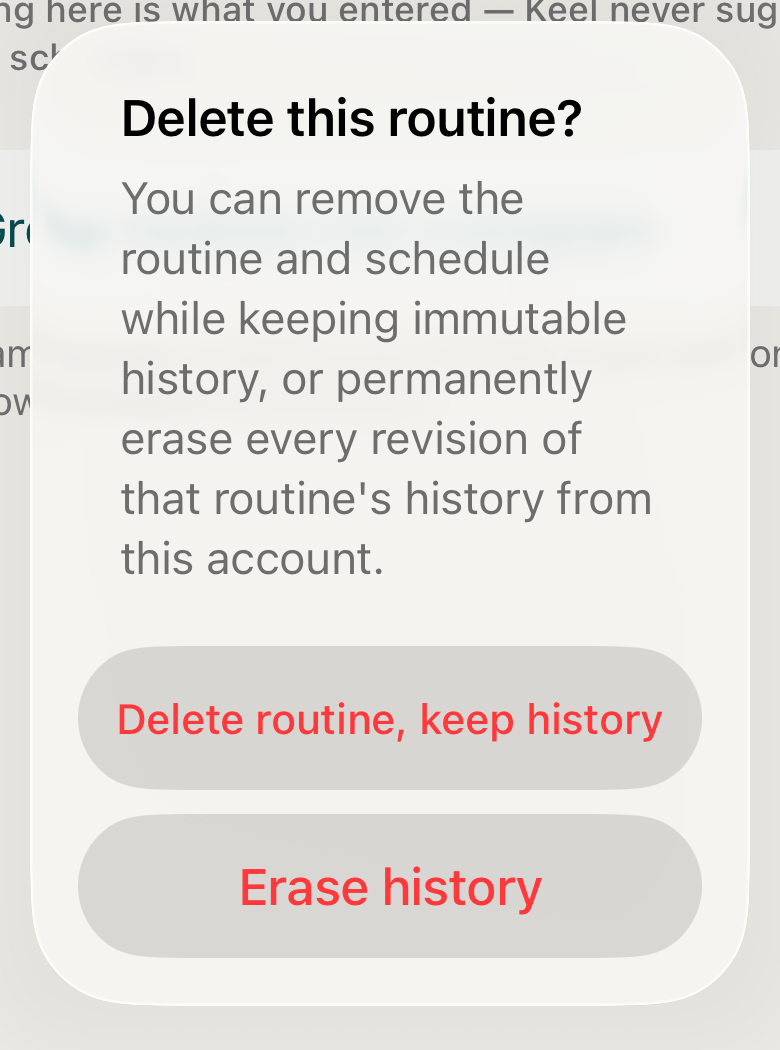
Deleting asks: keep the immutable history, or erase every revision of it from the account. DisclosureNo Cancel button is drawn on this dialog; tap outside it to dismiss.
- Delete routine, keep history
- Erase history
Where this screen comes from
- File
C2-F2-delete-routine-dialog.png(780×1050);C2-F2-delete-routine-dialog.webpis a lossy encode of it- Derivative SHA-256
ef181b7224c444fbe7b16ab649a542de592c6a3bc7f6469a38679388bd7220c2- Source
C2-F2.pngin packageKeel-WT-7e41269-guide-figures-B2-20260924-111151-1756- Source SHA-256
6d140f95027d36ec9bfa6b08df1347837d1269ffe4e82b597bb7384f3af8a1e2- Package seal
f9b0083234734b6b16f58e455596067bde9182e8e0ff62c5e84cdfae8ad22c6f- Captured from
- Keel 1.0.0 (1), implementation
working tree 7e41269 (NOT a candidate; head 7e4126919da3a44a9ad2f2efaf3ad2467c1fbff7, build-input tree c863167fe1474c471d3562fe90f5f107c9598edff3903cdfc58b89bc7ae3032c, build build-20260924-103514-93133) - Operation
- crop x270 y960 w780 h1050 (source pixels, origin top-left)
The numbered markers are drawn by the page, not into the image.

What changes
Keep history: the routine and its schedule disappear everywhere, it leaves any program it was in, and its logs stay in your history unlinked. Erase history: Keel first erases the routine’s history from the account online, then removes the routine — if the erase fails you see "Couldn’t erase history" and nothing is deleted. Pause and resume keep everything.
Where: The Routines sheet, Today and the calendar
If it looks different
- Looking for Archive?
- There is none; delete with keep history is the way to stop a routine for good.
- "Couldn’t save" after Pause or Delete routine, keep history?
- Nothing changed; the row still stands.
- "Couldn’t save" after Erase history?
- The history was already erased from the account online, but the routine itself was not removed and still shows; swipe again and choose Delete routine, keep history to finish. "Couldn’t erase history" means the online step failed and nothing was deleted.
- "This routine’s plan changed on another device." on Save?
- Close the form and reopen it.
Editing, pausing or deleting changes only what Keel schedules and keeps; it never advises stopping or restarting anything.